Introduction
Workspaces are the highest structural level in monday.com. They determine who can see what, how your boards are organised, and how your account scales as your team grows. Most teams start with a single workspace and never think about it again. That works fine until it does not.
This guide explains the difference between workspaces and boards, when you genuinely need multiple workspaces, how to structure them for different use cases, and how to avoid the governance mistakes that make a monday.com account unmanageable at 20 or more users.
If you are new to monday.com and still setting up your first board, start with our beginner's guide first.
Workspaces vs Boards: What Is the Difference?
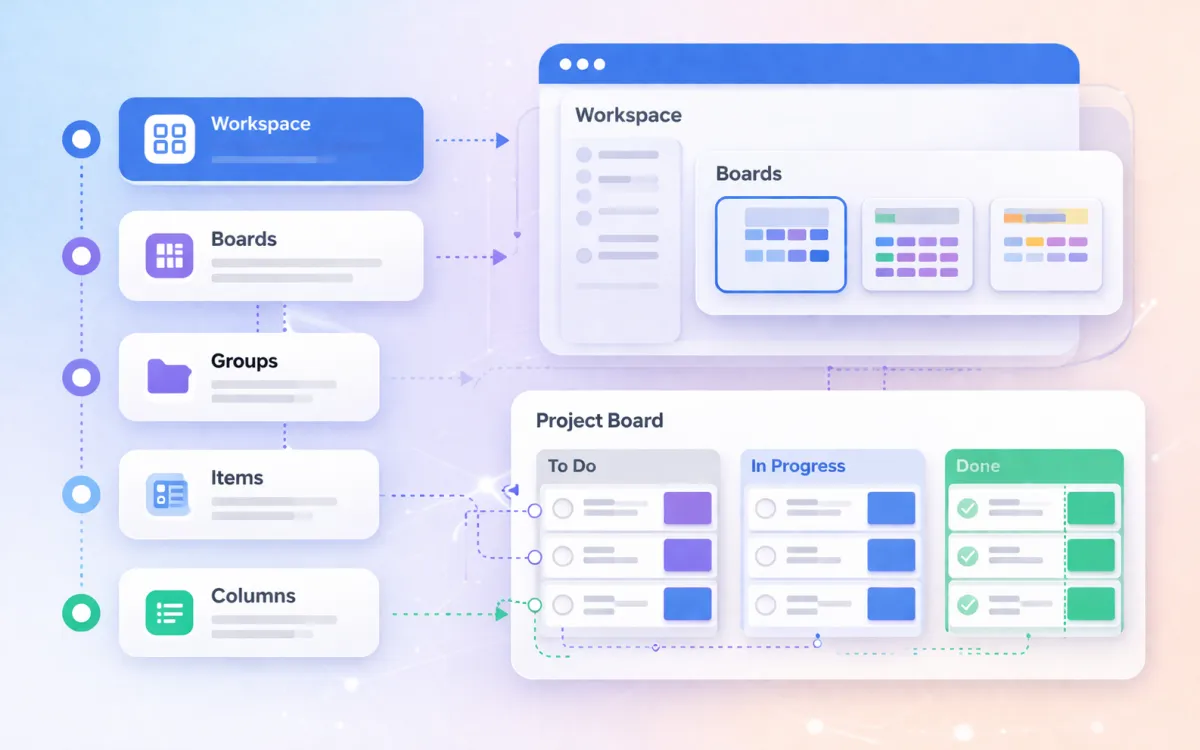
A board is a single working surface. It holds items (rows), columns (fields), and groups (sections). A board represents one process, project, or dataset: "Sales Pipeline," "Marketing Campaigns," "Client Onboarding."
A workspace is a container that holds multiple boards, dashboards, and docs. It has its own member list and permission settings. Think of a workspace as a department or team environment that groups related boards together.
The key difference is visibility and access control. Every member of a workspace can see every board inside it (unless individual board permissions override this). Members outside the workspace cannot see any of its boards.
This matters for two scenarios:
- Confidentiality. Finance data, HR records, or client-specific information that not everyone in the company should see.
- Noise reduction. A marketing team does not need to scroll past 15 engineering boards to find their content calendar.
If neither of these applies, a single workspace with well-named boards is simpler and sufficient. If you are setting up a CRM specifically, our CRM setup guide covers the board structure and connections you need.
When to Create Multiple Workspaces
Create a new workspace when you need at least one of these:
Access separation. Different groups of people should not see each other's data. Finance boards containing salary information, HR boards with performance reviews, or client workspaces where external guests can collaborate without seeing other clients' data.
Billing or plan separation. On some plans, workspace count is limited (one on Basic, five on Standard, 15 on Pro, unlimited on Ultimate). If you are on Standard, your five workspaces need to be meaningful divisions, not casual groupings.
Dashboard isolation. Dashboards live inside workspaces. If you need department-specific dashboards that pull only from that department's boards, separate workspaces make this cleaner.
Do not create a workspace just because:
- You want to "organise" your boards. Use board folders within a workspace instead.
- You have different projects. Projects are boards, not workspaces.
- You have different teams that work together frequently. If teams share boards or need to see each other's data regularly, putting them in separate workspaces creates friction.
A good rule: if you would need to give most people access to both workspaces anyway, they should be one workspace.
Department Workspaces vs Client Workspaces
The two most common multi-workspace patterns are department-based and client-based.
Department workspaces
Each department gets its own workspace: Sales, Marketing, Operations, Finance, HR. Boards inside each workspace are specific to that department's processes.
Works well when:
- Departments operate independently with distinct workflows.
- Confidentiality requirements exist (Finance, HR).
- Teams are larger than 10 people per department.
Watch out for:
- Cross-department projects need boards in a shared workspace (or duplicated, which creates data integrity problems).
- Company-wide dashboards cannot pull data from boards in workspaces you do not have access to. Plan a "Company" workspace for shared reporting boards.
Client workspaces
Each major client or project gets its own workspace. Boards inside track that client's deliverables, communications, and milestones.
Works well when:
- You are an agency, consultancy, or managed service provider.
- Clients have guest access and should only see their own data.
- Projects are long-running (months, not days).
Watch out for:
- Workspace proliferation. If you have 50 clients, you may have 50 workspaces. This becomes difficult to manage and navigate.
- Internal process boards (HR, finance, company operations) still need a separate workspace.
- Workspace limits on Standard (five) and Pro (15) may not be enough for client-per-workspace models.
For agencies and consultancies serving multiple clients, a hybrid approach often works best: one workspace per large or ongoing client, one "Internal" workspace for company operations, and a "Small Projects" workspace for short-term engagements that do not justify their own workspace.
Permissions and Access Control
monday.com has three levels of permission that interact:
Account-level roles
- Admin: Full access to all workspaces, boards, billing, and settings. Limit this to two or three people.
- Member: Can access workspaces they are added to. Can create boards within those workspaces.
- Viewer: Read-only access. Can see boards in their workspaces but cannot edit. Good for stakeholders who need visibility without edit rights.
- Guest: External users with limited access. Can only see boards they are explicitly invited to.
Workspace-level access
Each workspace has its own member list. When you add someone to a workspace, they can see all boards inside it by default. You can set a workspace to "Open" (anyone in the account can join) or "Closed" (invitation only).
Board-level permissions
Individual boards can override workspace-level access. You can make a board visible to everyone in the workspace or restrict it to specific people. This is useful for boards within a department workspace that contain sensitive information (like a hiring board within the HR workspace that only the HR manager and hiring panel should see).
Recommended permission setup
- Keep the number of account admins small (two to three maximum).
- Use closed workspaces for any workspace containing confidential data.
- Set board-level restrictions only when needed within an otherwise open workspace.
- Create a "Viewers" group for stakeholders and executives who need dashboard access but should not edit board data.
- Review workspace membership quarterly. People change roles, leave the company, or move teams. Stale permissions are a governance risk.
Naming Conventions That Scale
Naming matters more than you think. At five boards, anything works. At 50 boards across five workspaces, poor naming makes monday.com feel chaotic.
Workspace names
Use clear, consistent names. Pick one pattern and stick to it:
- Department pattern: "Sales," "Marketing," "Operations," "Finance"
- Client pattern: "Client: Acme Corp," "Client: Beta Industries," "Internal"
- Function pattern: "Revenue," "Delivery," "People," "Admin"
Do not mix patterns. "Sales," "Client: Acme," and "John's Projects" in the same account is confusing.
Board names
Include enough context to understand the board without opening it:
- "Sales Pipeline" rather than "Pipeline"
- "Q2 2026 Marketing Campaigns" rather than "Campaigns"
- "Client Onboarding: Enterprise" rather than "Onboarding"
Avoid generic names like "Tasks," "Tracker," or "Main Board." These mean nothing to someone who is not the board creator.
Group names within boards
Use action-oriented or status-oriented names:
- "New," "In Progress," "Review," "Complete" for workflow boards
- "This Week," "Next Week," "Backlog" for planning boards
- Stage names that match your process for pipeline boards
Avoid numbering groups (Group 1, Group 2) or using vague labels ("Misc," "Other").
Moving Boards Between Workspaces
You can move a board from one workspace to another. Right-click the board name in the sidebar, select "Move to," and choose the destination workspace.
What to know before moving:
- Automations continue to work after the move, but test them. Automations that reference boards in the original workspace may break if the board no longer has access to them.
- Dashboards that reference the board will lose that data source if the dashboard is in the original workspace and the board moves to a different one.
- Permissions change to match the destination workspace. If the board was accessible to Sales workspace members and you move it to Marketing, Marketing members can now see it and Sales members cannot (unless they are also in Marketing).
- Connect Boards columns continue to work across workspaces, but the connected board must be accessible to users in both workspaces.
For large restructuring (moving many boards, changing workspace boundaries), plan the migration: list all automations and dashboard dependencies before you move anything. If you are also migrating data from another CRM, the workspace structure decision should happen during the planning phase, not after import. Our migration readiness assessment helps you scope that complexity. This is the kind of structural change where a CRM design consultation saves significant time.
Need help structuring your monday.com account?
We design workspace structures, permission models, and board architectures that scale with your team. Free consultation to discuss your setup.
Talk to a CRM Design SpecialistFrequently Asked Questions
How many workspaces should I have?
Start with one. Add a second only when you have a clear access separation or confidentiality requirement. Most teams under 30 people work well with one to three workspaces. The exact number depends on your organisational structure and confidentiality needs, not on the number of boards you have.
Can I move items between workspaces?
Items live on boards, and boards live in workspaces. To move an item to a board in a different workspace, right-click the item and use "Move to" to select the destination board. The item will move with its column values, but some columns (like Connect Boards or People) may not transfer cleanly if the destination board has different column types.
What happens to guests when I change workspace permissions?
Guests can only see boards they have been explicitly invited to, regardless of workspace settings. Changing a workspace from Open to Closed does not affect guest access to their specific boards. However, removing a guest from a workspace removes their access to all boards within it.
Can I have a board in multiple workspaces?
No. A board exists in exactly one workspace. If multiple teams need access to the same board, either place it in a shared workspace that both teams can access, or use dashboards in each team's workspace that pull data from the shared board (dashboards can reference boards in other workspaces as long as the dashboard creator has access to both).
Should I use workspaces or board folders for organisation?
Use board folders within a workspace for visual grouping when access control is not needed. Use separate workspaces when you need different groups of people to have different access. Folders are cosmetic; workspaces are structural.