Introduction
Most CRM implementations fail not because the software was wrong, but because the setup was rushed. A team signs up, imports a CSV, drags a few columns around, and declares the CRM "live." Three months later, the pipeline is full of stale deals nobody updates, half the team has gone back to spreadsheets, and the dashboard numbers mean nothing.
monday.com CRM is genuinely good software. But like any CRM, it only works if you set it up deliberately. This guide walks through the entire setup process: what the platform gives you out of the box, what decisions you need to make before you touch any settings, and how to build a system your sales team will actually use.
If you are migrating from another CRM (rather than starting fresh), read our CRM migration checklist first. That covers data audit, field mapping, deduplication, and cutover planning. This guide assumes you are either starting from scratch or have already completed your migration prep.
What Monday.com CRM Actually Includes
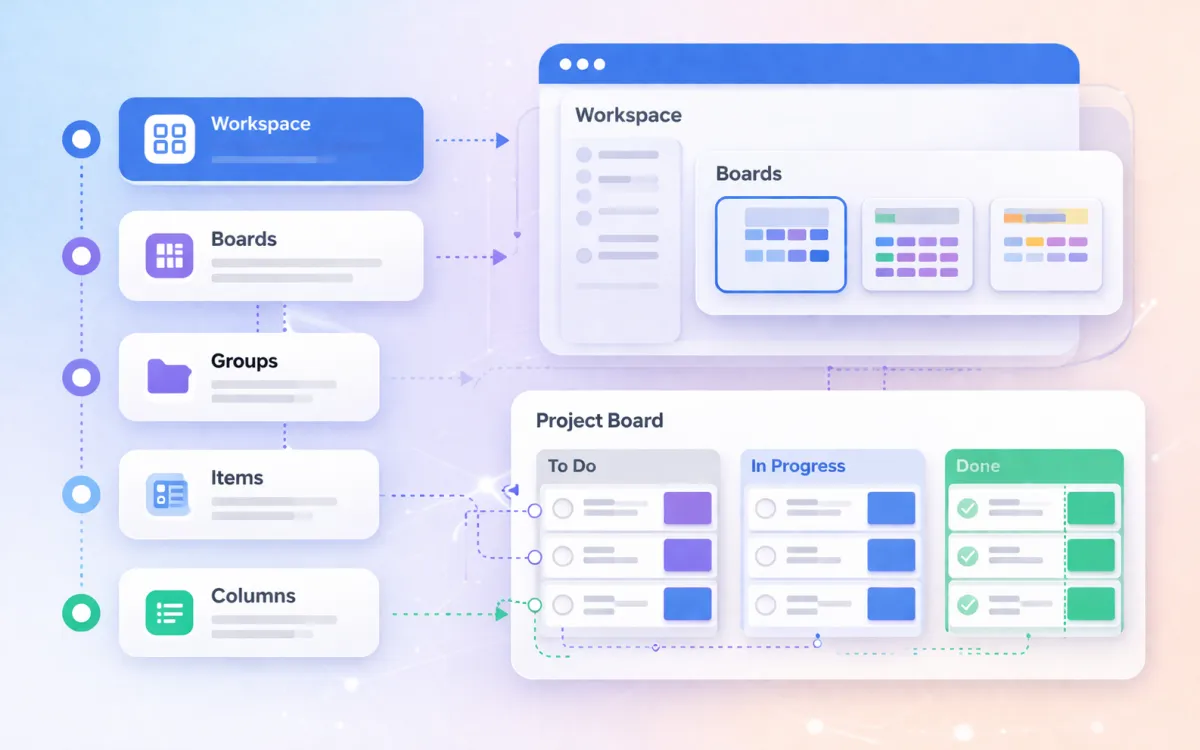
When you activate monday.com CRM, you get five interconnected entity boards. These are not templates you can accidentally delete; they are permanent structures built into the CRM product.
Leads Board. This is where new prospects enter your system. It ships with 15 default columns including lead name, status (New Lead, Attempted to Contact, Contacted, Qualified, Unqualified), owner, company, title, email, phone, region, and source. The status column drives your qualification workflow: when a lead is marked "Qualified," a built-in automation can move them to the Contacts board automatically.
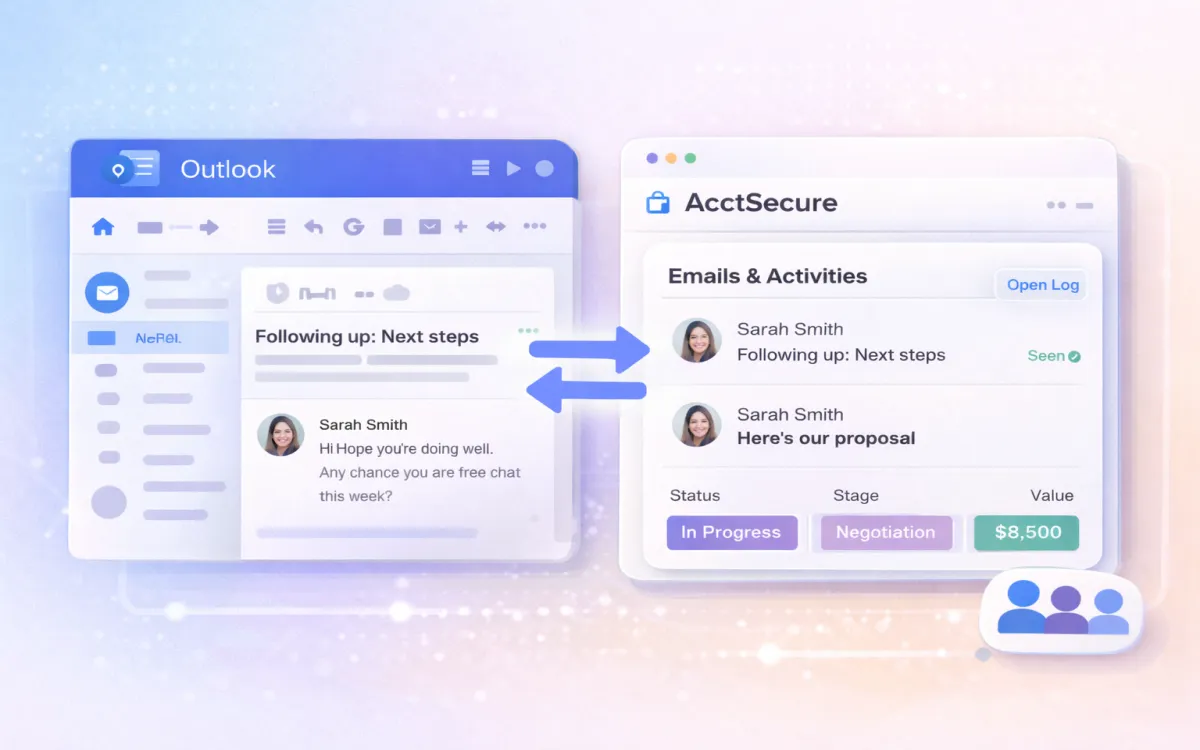
Contacts Board. Qualified leads and manually added contacts live here. Each contact can be linked to an Account and to one or more Deals using Connect Boards columns. If you enable automatic contact creation in the Emails and Activities settings, anyone you email for the first time gets a contact record created automatically.
Accounts Board. Company-level records. Contacts are linked to Accounts either manually or via automatic email domain matching (so jane@acme.com automatically associates with the Acme account). The Accounts board shows a count of associated contacts and deals per company, giving you a top-down view of each relationship.
Deals Board. Your sales pipeline. Default columns include deal name, stage, owner, deal value, expected close date, close probability, and a forecast value formula (deal value multiplied by close probability). The board supports table view, Kanban pipeline view, chart view, and a dedicated dashboard view.
Activities Board. A centralised log of every call, meeting, email, and note logged through the platform. This board populates automatically from the Emails and Activities feature and enables cross-rep activity reporting.
These five boards work together. The Connect Boards columns create relationships between them, so when you open a deal, you can see the associated contact, their account, and every activity logged against them, all without leaving the item card.
Define Your CRM Objects First
Before you customise any columns or import any data, write down how your business defines these four objects:
Leads. Who counts as a lead? Is it anyone who fills in a form, or only people who meet specific qualification criteria? Define your lead sources (website form, referral, event, cold outreach) and your qualification criteria. This determines when a lead moves from the Leads board to the Contacts board.
Contacts. Are contacts always individual people, or do some teams store team inboxes or shared aliases? Decide whether you need separate fields for first name and last name, or whether a single name field is enough.
Accounts. Do you track companies, households, or something else? Some businesses (particularly in financial services or insurance) need a more nuanced account structure. Decide early whether one account equals one legal entity or one relationship.
Deals. What triggers a new deal? What are your pipeline stages, and what has to be true before a deal moves to the next stage? Define your exit criteria for each stage now. Vague stage definitions are the single biggest cause of unreliable pipeline data.
Write these definitions in a shared document before you touch the CRM. Getting alignment with your sales team at this stage saves weeks of rework later.
Import Your Data the Right Way
monday.com CRM offers several import methods: manual entry, CSV upload (with a dedicated column-matching wizard), WorkForms (shareable web forms that create board items), integrations with 200+ tools, a Chrome extension for capturing leads from Gmail, and data enrichment via Crunchbase.
If you are importing from an existing system, these steps are non-negotiable:
Clean before you import. Run deduplication in your current system first. The typical B2B CRM has a 15 to 30% duplicate rate. Merging duplicates after import into monday.com is manual and painful. Do it while you still have your old system's tools.
Map your fields. Create a spreadsheet with three columns: source field name, destination monday.com column, and transformation rule. Every field needs a row. Pay attention to format differences: full names that need splitting into first and last, phone numbers without country codes, dates in DD/MM/YYYY versus MM/DD/YYYY, and multi-select fields that may not have a direct equivalent.
Validate mandatory fields. Define minimum data standards before import: valid email format, company name present, deal stage assigned, phone number with country code. Any record that does not meet the standard gets fixed or excluded.
Import in batches. Do not load your entire database in one pass. Start with your top 50 accounts and their associated contacts and deals. Verify the data looks correct, check that Connect Boards relationships are working, and then import the rest.
If you are migrating from HubSpot, Salesforce, or another major CRM, our data migration service handles the field mapping, transformation, and validation for you.
Need help with your data migration?
We handle field mapping, deduplication, transformation rules, and post-import validation so you do not have to.
Talk to a Migration SpecialistDesign Your Sales Pipeline
The Deals board pipeline is the core of your CRM. Get this right and everything else follows. Get it wrong and your team will fight the system instead of using it.
Choose your stages
monday.com ships with default stages: New, Discovery, Proposal, Negotiation, Won, Lost. These work for many teams, but you should customise them to match your actual sales process. Edit the Stage column labels to reflect how your team really sells.
Good pipeline stages share three characteristics:
- Each stage has a clear entry action. "Discovery" means a discovery call has been booked or completed, not that someone vaguely expressed interest.
- Each stage has exit criteria. A deal cannot move from "Proposal" to "Negotiation" until the prospect has received and acknowledged a written proposal.
- Stages are sequential. Deals should not skip stages. If they regularly do, your stages do not match your real process.
Keep your pipeline between five and eight stages. Fewer than five and you lose visibility into where deals stall. More than eight and reps stop updating because it feels like admin.
Set deal value and probability defaults
For each stage, set a default close probability. This powers the forecast value formula column (deal value multiplied by close probability). Typical ranges:
- New: 10%
- Discovery: 20%
- Proposal: 40%
- Negotiation: 60%
- Verbal commitment: 80%
- Won: 100%
- Lost: 0%
These defaults give you a weighted pipeline forecast from day one. Refine the percentages as you gather real conversion data.
Use the Pipeline (Kanban) view
Switch the Deals board to Pipeline view to see deals as cards grouped by stage. You can drag and drop cards between stages, and each stage column shows the total deal value at the top. This is the view your sales manager should review in weekly pipeline meetings.
Columns That Matter
monday.com CRM lets you add unlimited columns on Pro and above. Resist the temptation to add every field you can think of. Every column you add is a field your reps have to fill in. Each one adds friction.
Essential columns for the Deals board (beyond the defaults):
- Next step (text): A one-line description of the next concrete action. Forces reps to think about what moves the deal forward.
- Next step date (date): When that action is due. Feeds into follow-up automations.
- Deal source (status or dropdown): Where the opportunity came from. Essential for marketing ROI reporting.
- Competitor (status or dropdown): Who you are competing against. Helps managers provide targeted coaching.
Essential columns for the Contacts board:
- Job title (text): Needed for targeting and personalisation.
- LinkedIn URL (text): Enables quick profile lookup during calls.
- Last activity date (date, auto-updated): Flags contacts going cold.
Columns to skip initially:
- Industry, company size, and detailed demographic fields for contacts. These are useful eventually but add friction in week one. Get the team using the CRM consistently first, then layer in data enrichment.
- Custom formula columns for complex metrics. Build these after you have real data to validate against.
Connect Your Boards
The Connect Boards column is what makes monday.com CRM feel like a CRM rather than a collection of separate spreadsheets. Set up these connections:
- Contacts to Accounts. Link each contact to their company record. Enable automatic account association by email domain so new contacts get linked automatically.
- Deals to Contacts. Link each deal to the primary contact. This lets you see all deals associated with a person from their contact record.
- Deals to Accounts. Link each deal to the company. This gives you an account-level view of total pipeline and revenue.
Once these connections are in place, the Item Card (the 360-degree view you see when opening any item) will show related records from connected boards. A contact's item card will display their account, all associated deals, and the full communication timeline.
Configure the Connected Boards Widget in the Item Card to show the most useful summary columns from each connected board. For deals connected to a contact, show deal name, stage, value, and expected close date.
Your First 10 Automations
monday.com CRM ships with pre-built automation recipes. Start with these before building custom ones. Each automation consumes from your monthly action quota (250 actions on Standard, 25,000 on Pro), so be deliberate.
Start with these 10:
- When Lead status changes to "Qualified," create an item on Contacts board. This is the core lead-to-contact conversion workflow.
- When an email or activity is logged, update the "Last update" column. Keeps engagement recency visible without manual entry.
- When Deal stage changes, notify the deal owner via monday notification. Confirms the update was registered.
- When Deal is marked "Won," notify the team channel. Celebrates wins and keeps the team informed.
- When a new lead is created, assign owner based on round robin. Distributes leads fairly across the team. The round robin resets every 30 days.
- When Deal expected close date passes without a "Won" status, change status to "Overdue." Flags stale deals automatically.
- When Contact has no activity for 30 days, send a reminder to the owner. Prevents relationships from going cold.
- When Deal value exceeds a threshold, notify the sales manager. Escalates high-value opportunities for coaching.
- When a new item is created on the Leads board, send an email notification to the owner. Ensures no lead sits unactioned.
- When Lead status changes to "Unqualified," move to archive group. Keeps the active pipeline clean.
Important warnings:
- Test each automation with a dummy record before activating it for the whole board. Automations that trigger on existing items can fire hundreds of actions in seconds.
- Check the Automation Center's Run History weekly during the first month. Failed automations do not always surface obvious errors.
- Do not build complex multi-step automations in week one. Get the basics working reliably first.
Build Your Sales Dashboard
monday.com CRM includes a pre-built Sales Dashboard with widgets tailored to pipeline management. You can use it as-is or build a custom dashboard.
Recommended widgets for your first dashboard:
Funnel Chart. Shows conversion rates between pipeline stages with deal counts and values at each stage. This is the single most useful widget for understanding where deals drop out.
Deals by Stage (Chart widget). A bar or pie chart showing total deal value per stage. Reveals whether your pipeline is top-heavy (lots of early-stage deals, few late-stage) or bottom-heavy.
Goal Gauge. Set monthly or quarterly revenue targets and track actual closed-won deal value against them. Makes targets visible to the whole team.
Leaderboard. Ranks reps by total deal value, number of deals, or conversion rate. Useful for coaching conversations, not just competition.
Activity Tracker. Shows the volume of calls, emails, meetings, and notes per rep. Helps managers identify reps who are active but not closing, or closing but not active enough to sustain their pipeline.
Start with five widgets. You can always add more, but a cluttered dashboard is worse than a sparse one. The goal is a dashboard your sales manager opens every morning and references in every pipeline review.
Plan limits: Basic plans get one custom dashboard. Standard gets five. Pro and above get unlimited.
Go-Live Plan
Do not flip a switch and declare the CRM live. A phased go-live reduces risk and builds confidence.
Week 1: Parallel running. The sales team uses both the old system and monday.com CRM. All new deals and activities go into monday.com. Existing deals stay in the old system until they close or are manually migrated.
Week 2: Primary system switch. monday.com becomes the primary system. The old CRM becomes read-only for historical reference. All reporting shifts to monday.com dashboards.
Week 3: Old system retirement. Export a final backup from the old system. Remove user access (or downgrade to a free archival plan if available). monday.com CRM is now the single source of truth.
During the transition:
- Run a 30-minute training session covering the five entity boards, how to log activities, and how to update deal stages. Keep it practical: screen share, live demo, real data.
- Appoint a CRM champion on the sales team. This person answers day-to-day questions and escalates issues. They should have admin access.
- Schedule a weekly check-in for the first month to review adoption (are all reps logging activities?), data quality (are stages being updated?), and any friction points.
If your team is larger than 10 people or your setup involves complex integrations, our CRM design service can handle the architecture, configuration, training, and go-live support.
Frequently Asked Questions
How long does it take to set up monday.com CRM?
For a team of five to ten people with a straightforward sales process, expect two to three weeks from sign-up to go-live. That includes one week for planning and data preparation, one week for configuration and testing, and one week for training and parallel running. More complex setups with multiple pipelines, custom integrations, or large data migrations take four to eight weeks. Take the migration readiness assessment to get a personalised estimate.
Which monday.com plan do I need for CRM?
Standard is the minimum viable plan for CRM because it unlocks Emails and Activities (email integration and tracking). Pro is recommended for most sales teams because it adds mass email, sequences, 25,000 monthly automation actions, and unlimited dashboards. Basic works for very small teams that only need lead and deal tracking without email integration.
Can I import data from my current CRM?
Yes. monday.com supports CSV import with a column-matching wizard, plus direct integrations with HubSpot, Salesforce, Pipedrive, and 200+ other tools. For complex migrations with large datasets, custom fields, or automation rebuilds, a dedicated migration service ensures nothing gets lost or corrupted.
How do I handle duplicate contacts?
monday.com CRM includes a built-in Manage Duplicates feature that detects and merges duplicate records across boards. Run it after your initial import and then periodically (monthly is a good cadence). For imports from systems with known duplication issues, clean duplicates in the source system before importing.
What happens when I run out of automation actions?
Automations stop running until the next billing cycle. You will see a notification in the Automation Center. On Standard, you get 250 actions per month, which is tight for active CRM usage. Pro gives you 25,000, which is sufficient for most teams. Monitor your usage in the Automation Center dashboard during the first month to understand your consumption patterns.
Should I customise the default boards or start from scratch?
Customise the defaults. The five entity boards (Leads, Contacts, Accounts, Deals, Activities) have built-in relationships and automations that you lose if you build custom boards. Add columns, rename stages, adjust views, but keep the core structure intact.