Introduction
monday.com CRM automations are powerful. They are also the fastest way to burn through your monthly action quota, corrupt your pipeline data, or create a chain of invisible failures that nobody notices until the quarterly forecast is wrong.
This guide is a practical library of automation recipes organised by function: lead intake, assignment and routing, follow-up and SLA management, deal stage progression, and reporting reliability. Each recipe includes the trigger, the action, and the warnings you need to know before enabling it.
If you have not set up your CRM boards yet, start with our CRM setup guide first. Automations built on top of a poorly structured CRM just automate the mess faster.
Before You Automate: Rules and Data Hygiene
Every automation assumes your data is clean. An automation that assigns leads to a rep based on region only works if the Region column is actually filled in. An automation that moves qualified leads to the Contacts board only works if your team agrees on what "qualified" means.
Before building any automation, confirm these foundations:
Define your status labels. Write down every status value and what it means. "New Lead" vs "Contacted" vs "Qualified" must have specific, agreed definitions. Ambiguous statuses produce unreliable automations.
Establish mandatory fields. Decide which columns must be filled in before an item can move to the next stage. If you are on the Ultimate plan, use Conditional Status Changes to enforce this at the platform level. On other plans, enforce it through team process and weekly data quality checks.
Understand your automation budget. Standard plans get 250 actions per month. Pro gets 25,000. Each trigger-action pair counts as one action. A single automation on a busy board can consume hundreds of actions per day. Check your current usage in the Automation Center before adding new recipes.
Test with dummy data first. Create a test item and trigger each automation manually before enabling it for the entire board. Watch the Run History in the Automation Center to confirm it fires correctly and does not produce unintended side effects. If you are migrating from HubSpot or Salesforce, pay attention to how your old automation logic maps to monday.com's recipe model; it is rarely a one-to-one translation.
Lead Intake Automations
These recipes handle what happens when a new lead enters your system.
New lead notification
Trigger: When an item is created on the Leads board. Action: Notify the Leads board owner or the assigned rep. Why: Ensures no lead sits unnoticed. Particularly important when leads come from web forms (WorkForms) or integrations that create items without human intervention. Warning: If you receive a high volume of leads (more than 20 per day), this automation will generate significant notification noise. Consider setting it to notify only the assigned person, not the entire team.
Auto-set default status
Trigger: When an item is created on the Leads board. Action: Set Status column to "New Lead." Why: Prevents blank statuses that break charts, reports, and downstream automations. Every item should have a status from the moment it exists.
Auto-set creation date
Trigger: When an item is created. Action: Set a "Created date" date column to the current date. Why: monday.com tracks creation date internally, but having it as a visible column lets you use it in filters, sorting, and SLA calculations without needing to reference metadata.
WorkForm submission tagging
Trigger: When an item is created by a WorkForm integration. Action: Set the Source column to "Website Form." Why: Tracks lead origin for marketing attribution. If you have multiple forms (contact page, landing page, resource download), create separate WorkForms and tag each with a different Source value.
Lead Assignment and Routing Recipes
These recipes determine who works on each lead.
Round robin assignment
Trigger: When an item is created on the Leads board. Action: Assign a person using round robin rotation. Why: Distributes leads fairly across the sales team. monday.com's built-in round robin cycles through assigned team members and resets every 30 days. Warning: Round robin assigns based on creation order, not lead quality or geography. If you need more sophisticated routing (e.g., enterprise leads go to senior reps), you need conditional automations instead.
Region-based routing
Trigger: When an item is created on the Leads board AND Region column equals a specific value. Action: Assign the Person column to the rep covering that region. Why: Routes leads to the rep with the right market knowledge. Warning: This only works if the Region column is populated at creation time. If leads arrive without region data (common with web forms), you need a fallback: assign to a default owner first, then re-route when region is added.
High-value lead escalation
Trigger: When an item's Deal Value column exceeds a threshold. Action: Notify the sales manager AND change a Priority status column to "High." Why: Ensures large opportunities get immediate management attention. Warning: Set the threshold high enough that it does not fire on every deal. If your average deal is 5,000, set the threshold at 20,000 or above.
Follow-Up and SLA Automations
These recipes prevent leads and deals from going cold.
Follow-up reminder after inactivity
Trigger: When the "Last activity" date column has not changed for X days. Action: Notify the assigned person. Why: Surfaces contacts and deals that are going stale. The most common pipeline leak is not lost deals; it is deals that stop progressing because nobody followed up. Warning: monday.com's date-based automations check once per day, not in real time. A "3-day inactivity" trigger fires on day 4, not exactly 72 hours later.
SLA timer for new leads
Trigger: When a lead has been in "New Lead" status for more than 24 hours. Action: Notify the assigned rep AND their manager. Why: Enforces response time SLAs. Research consistently shows that lead conversion rates drop significantly after 24 hours of no contact. Warning: This automation fires daily. If a lead stays in "New" status for a week, it sends seven notifications. The team needs to either contact the lead (changing the status) or explicitly mark it as "Unqualified" to stop the notifications.
Overdue deal flagging
Trigger: When the Expected Close Date has passed AND the Deal status is not "Won" or "Lost." Action: Set a "Stale Deal" status column to "Overdue." Why: Makes overdue deals visible in pipeline views and dashboards. Managers can filter to see only overdue deals in pipeline reviews.
Activity logging after status change
Trigger: When the Status column changes to "Contacted." Action: Require a note or activity log within 24 hours (via notification reminder). Why: Prevents reps from marking leads as "Contacted" without actually logging what happened. Keeps the communication timeline accurate.
Deal Stage Progression Recipes
These recipes manage how deals move through your pipeline.
Stage change notification
Trigger: When the Stage column changes on the Deals board. Action: Notify the deal owner and their manager. Why: Confirms stage changes are registered and visible. Useful for pipeline meeting prep: managers can see what moved since the last review.
Won deal celebration and handoff
Trigger: When Stage changes to "Won." Action 1: Send a team notification (celebration). Action 2: Create an item on the Client Onboarding board (if you have one). Action 3: Update the close date to the current date. Why: Celebrates wins publicly (good for team morale) and triggers the handoff to delivery or onboarding without manual effort. Warning: The "create item on another board" action creates a new item, not a copy. You need to map which columns carry over. Test this thoroughly: missing data in the onboarding item creates a poor client experience.
Lost deal logging
Trigger: When Stage changes to "Lost." Action: Require a "Lost reason" dropdown to be filled (via notification or, on Ultimate, via Conditional Status Changes). Why: Lost reason data is essential for improving your sales process. Without it, you know you lost but not why.
Pipeline velocity tracking
Trigger: When Stage changes to any value. Action: Update a "Stage changed date" date column to the current date. Why: Lets you calculate time in stage: the difference between the current date and the stage changed date. Pipeline velocity (average time per stage) is one of the most diagnostic sales metrics available.
Reporting Reliability Guardrails
These recipes protect the accuracy of your dashboards and reports.
Prevent deals without owners
Trigger: When an item is created on the Deals board AND the Person column is empty. Action: Assign to a default owner (e.g., the sales manager) AND send a notification to resolve. Why: Orphan deals (no assigned rep) do not appear in person-filtered reports and dashboards. They create blind spots in your pipeline visibility.
Prevent deals without values
Trigger: When Stage changes beyond "New" AND the Deal Value column is empty or zero. Action: Notify the deal owner to add a deal value. Why: A pipeline where 40% of deals have no value makes forecasting meaningless. This automation catches the gap early, before the deal progresses further.
Archive closed deals automatically
Trigger: When Stage is "Won" or "Lost" AND 30 days have passed. Action: Move the item to an Archive group. Why: Keeps the active pipeline view focused on live deals. Archived items remain searchable and reportable but do not clutter the main board. Warning: Set the delay long enough (30 days is a good default) that recently closed deals are still visible for monthly reporting and commission calculations.
Weekly pipeline health digest
Trigger: Every Monday at 9:00 AM. Action: Send a board summary notification to the sales manager. Why: A scheduled snapshot of total pipeline value, deal count by stage, and overdue deals. Replaces the need to manually pull these numbers before each pipeline review.
Need custom automations built for your CRM?
We design and build automation workflows for monday.com CRM, from lead routing to pipeline management to reporting. No guesswork, no wasted quota.
Talk to an Automation SpecialistFrequently Asked Questions
How many automations should I start with?
Five to ten. Enough to cover basic lead notification, assignment, and stage management. Add more after you have monitored the Run History for two weeks and confirmed your existing automations are working correctly. The most common mistake is building 30 automations in week one and then not knowing which one is causing an unexpected behaviour.
What counts as one automation action?
Each time an automation fires, it consumes one action from your monthly quota. If an automation triggers on a status change and you change the status on 50 items, that is 50 actions. Batch updates (importing 500 leads) can consume 500 actions from a single automation in seconds. Check your quota before running large imports.
Can automations trigger other automations?
Yes, and this is where things get risky. If Automation A changes a status, and Automation B triggers on that status change, you have a chain. Chains can be intentional and useful, but they can also create loops where automations trigger each other indefinitely. monday.com has loop protection, but it is not perfect. Review your automations for unintended chains before enabling them.
What happens when an automation fails?
The automation stops for that specific trigger instance. It does not retry automatically. Check the Run History in the Automation Center to see failed automations, the error message, and which item was affected. Common failure causes: the target column does not exist (board was restructured), the assigned person was deactivated, or the automation references a board the creator no longer has access to.
How do I know if I need the Pro plan for automations?
If your team has more than five active reps and you are running the recommended set of automations (lead notification, assignment, follow-up reminders, stage change notifications, reporting guardrails), you will likely exceed the 250-action monthly limit on Standard within the first week. Pro gives you 25,000 actions, which is enough for most teams up to 50 reps. If you are on Standard and hitting limits, the Pro upgrade pays for itself in manual work avoided.
Can I automate email sending from monday.com CRM?
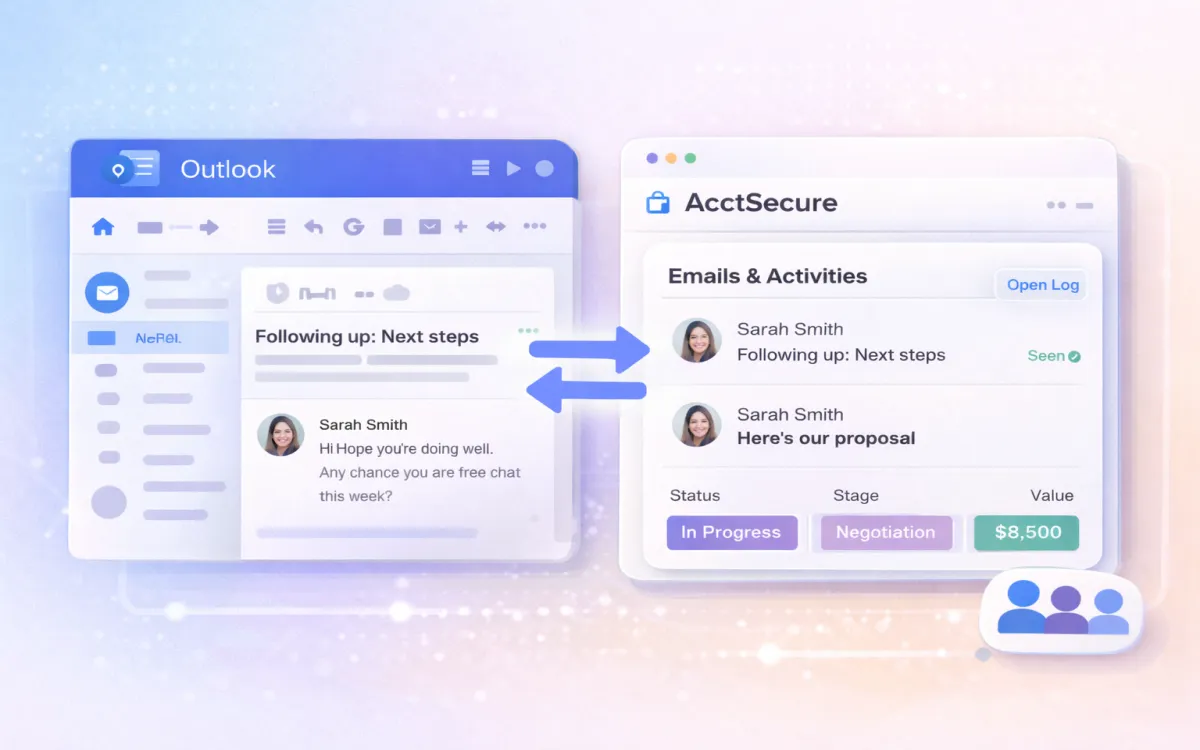
Yes. You can create automations that send emails when a status changes, a date arrives, or a specific condition is met. See our Outlook integration guide for how to connect your email account first. Emails are sent from your connected email account (Gmail or Outlook). Sequences (available on Pro and above) automate multi-step email cadences. Be careful with automated emails: test them with a single recipient before enabling them for your entire lead database. An incorrectly configured email automation can send hundreds of unwanted messages in minutes.